Use Digital Wellbeing features on your Galaxy phone or tablet

In today's world, people spend a lot of time on phones and tablets. That's an undeniable fact. If you are worried that you're spending too much time looking at a screen, the new and improved Digital Wellbeing feature on One UI 5 can monitor your usage times and even set timers for some apps. Take advantage of this helpful tool so you can take control of your digital habits.
Person using a Galaxy S25 Ultra on a treadmill while wearing Galaxy Buds3 Pro.

Use Digital Wellbeing features on your Galaxy phone or tablet

Note
Available screens and settings may vary by wireless service provider, software version, and device model. Your device needs to have Android 10 or later to use these features. Certain options have been moved to the Modes and Routines section in the Settings menu. Digital Wellbeing cannot be removed or disabled.

Set a Screen time goal

You can manage your daily usage with the Screen time goal tracker.

  1. Navigate to and open Settings, and then tap Digital Wellbeing.
  2. Tap Set goal under Screen time goal. Choose your desired hours and minutes for your screen time goal. Tap Done.
    A Galaxy phone screen showing Screen time goal options with a Set goal button highlighted.
    Note: On some devices, you may need to choose your desired time first, and then tap Set.
  3. After the schedule is created, you can tap the Screen time goal tracker, and then tap a day of the week to view your current usage. You’ll see the hours and minutes you’ve spent on your device that day.
  4. To change or delete the goal from the Screen time goal tracker, tap the goal, and then make your desired changes, or tap Delete. Tap Delete to confirm.

You can also view your weekly screen time without setting a goal. From Settings, tap Digital Wellbeing, and then tap the Weekly report icon (it looks like four vertical lines) in the top right corner. You’ll see your daily average screen time, as well as the apps you’ve used most frequently during the week.

Read less

Set and use app timers

Think of the Digital Wellbeing feature as a budget, but for digital habits instead of spending habits. You can view your overall usage, the amount of time you've spent on your apps every day, the number of notifications you've received, and the number of times you've unlocked your phone or tablet. You can even set a timer for each app to help you keep track of how long you're using them.

  1. Navigate to and open Settings, and then tap Digital Wellbeing.
  2. Tap App timers, then tap Apps and app categories, and select your desired apps. Or, tap All in the top left corner to select everything.
  3. Tap Add schedule and choose the days, hours, and minutes. Tap Save.
    A Galaxy phone screen showing days of the week selected and a time picker set to twelve forty five.
  4. You can edit the days, hours, and minutes for the app at a later time. From the Digital Wellbeing page, tap the app on the App timers tracker. Tap the schedule you want to edit, then adjust the options, and then tap Save.
  5. To remove an app timer from the Digital Wellbeing page, tap the app on the App timers tracker, then tap Apps and app categories, and then tap the red minus icon next to the app.
Read less

Use Sleep mode

Note
This was formerly called Bedtime mode or Wind Down.

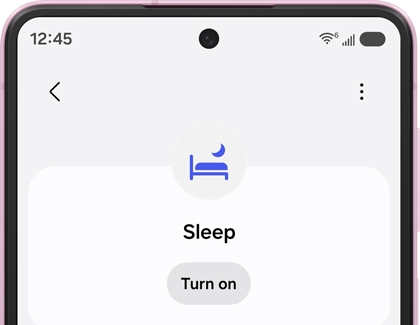
A Galaxy phone screen showing the Sleep mode menu with a bed icon and a Turn on button.

Looking at a screen before going to bed can actually affect how well you sleep. To prevent this, turn on Sleep mode to change the screen to grayscale. This will help remind your brain that it's almost time for bed.

  1. Navigate to and open Settings, and then tap Modes and Routines. Tap Sleep.
  2. Tap When to start this mode (next to the plus sign), and then tap Sleep schedule. Set your usual sleep and wake-up times, then tap Save. Tap Done once all sleep schedules are added. 
  3. To enable Do not disturb, tap Stay focused, then tap Do not disturb or the plus icon next to it, and then tap Done.
  4. You can choose from additional settings when using Sleep mode:
    • Always On Display: Enable or disable Always On Display. Tap the Settings icon to view additional settings for Always On Display.
    • Grayscale: Turn the screen colors to grayscale.
    • Dark mode: Enable Dark mode. Your device will use a darker theme for apps and menus.
    • Eye comfort shield: Enable Eye comfort shield to further reduce eye strain.
    • Sound mode and volume: Adjust the settings for sound, vibrate, mute, ringtone, notifications, and system sounds.
    • Power saving: Turn on your device’s Power saving mode.
  5. When you're finished, tap Done. Tap Turn on to begin using Sleep mode. You can also adjust your desired settings from this page.
  6. If you’d like to stop using Sleep mode, simply tap Turn off at the top of the screen.
Read less

Use Volume monitor

Person wearing Galaxy Buds3 Pro, smiling while listening to audio.

If you love turning up the volume when using your Galaxy Buds or other headphones, let Volume monitor make sure you’re keeping your ears safe.

  1. Navigate to and open Settings, and then tap Digital Wellbeing.
  2. Tap Volume monitor.
  3. Tap More options (the three vertical dots), then tap Use volume monitor.
  4. Tap the switch at the top to turn it on. You can also tap the switch next to Ear safety alerts to receive warnings when you’ve been listening at high volumes for long periods of time.
  5. Next, tap Back to view your Daily and Weekly audio data. The next time you’re listening to some music, you can check your audio data by going back to this screen.
  6. If you’d like to stop using Volume monitor, navigate to Digital Wellbeing, tap Volume monitor, tap More options (the three vertical dots), and then tap Use volume monitor. Tap the switch at the top to disable it.
Read less

Use Driving screen time

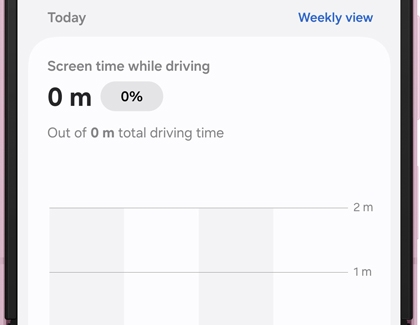
A Galaxy phone screen showing Screen time while driving settings with zero minutes of driving time logged on a graph.

Driving monitor helps you focus on driving when your device is connected to your car via Bluetooth. You’ll be able to check which apps you tend to use the most while driving.

  1. Navigate to and open Settings, and then tap Digital Wellbeing.
  2. Tap Driving screen time.

    Note: Tap Turn on if prompted, and then follow the on-screen instructions to enable customization service.
  3. Tap More options (the three vertical dots), then tap Choose excluded apps.
  4. Tap Add and select the app(s) you’d like to exclude from Driving screen time, such as navigation apps that you may want to use while driving. Tap Done, then OK to save. Now, Driving screen time will only monitor the apps you did not exclude.
  5. Your Driving time and Screen time while driving will be calculated at the bottom of the screen. You can also tap Daily view or Weekly view at the top to view your device usage over time. As long as your device is connected to your car using Bluetooth, Driving screen time will keep track of your device usage.
  6. If you’d like to stop using Driving screen time, you’ll need to remove the apps from the excluded apps list. From the Driving screen time tracker screen, tap More options (the three vertical dots), and then tap Choose excluded apps. Tap the red minus icon next to the selected app(s) at the top. Then, tap OK.
Read less

Set up Parental controls

A Galaxy phone screen showing parental control options including Web content filters, Set up a parental controls PIN, and Samsung parental controls. 

If you are concerned about your kids spending too much time on their devices or coming across something inappropriate on the internet, you can set up parental controls.

With this feature, you can set limits on their usage time and also add content restrictions. That way, you'll have one less thing to worry about.

Read less
Was this content helpful?
Table of contents
We're here for you

Contact Samsung Support

Contact us online through chat and get support from an expert on your computer, mobile device, or tablet. Support is also available on your mobile device through the Samsung Members App.

